




First of all, you need to install linux machine before using bedrock linux😹
Unlike most linux distributions, Bedrock linux is not typically installed from scratch using a traditional installer. Instead, it takes over and existing Linux installation and transforms it into Bedrock system. This means you can start with a distribution such as Debian, Ubuntu, Arch Linux, or another compatible Linux distribution. After bedrock Linux is installed, your original distribution becomes one of the system’s strata, allowing you to add and use components from other Linux distributions alongside it.
Why Bedrock Linux?
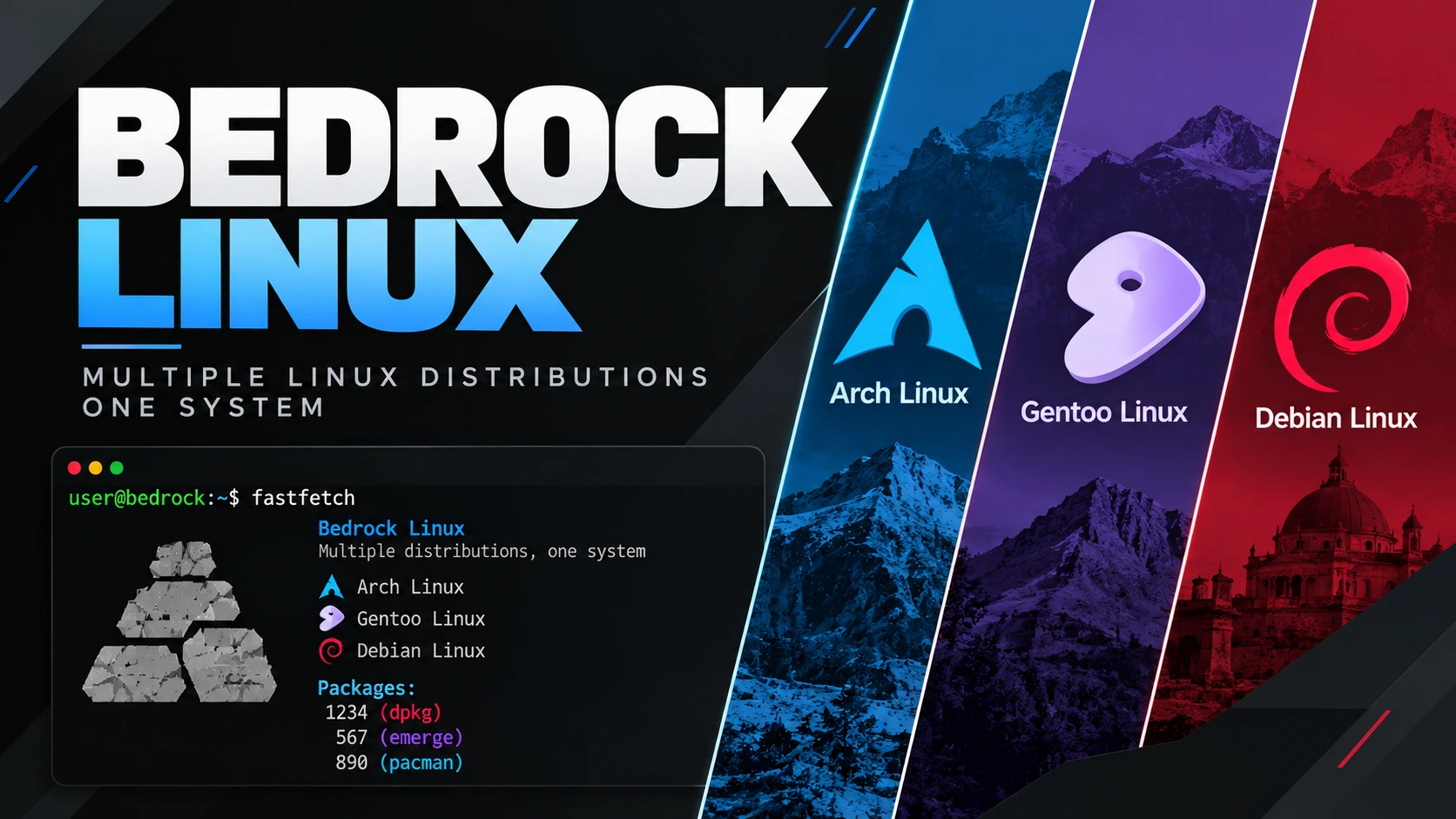
Bedrock Linux is useful when you want the advantages of multiple Linux distributions without being limited to only one ecosystem. Instead of choosing between Debian’s stability, Arch Linux’s up-to-date packages, or Gentoo’s flexibility, Bedrock allows you to combine components from different distributions into one largely cohesive system.
For example, you can use Debian for stable system components, Arch Linux for newer software and access to the AUR, and Gentoo for packages that you want to customize or compile yourself. Bedrock organizes these distributions into separate strata while allowing their applications and tools to work together across the same system.
In short, Bedrock Linux is designed for users who often find themselves thinking, “I like this feature from one distribution, but I also want something from another.” Instead of forcing you to choose only one, Bedrock gives you a way to use the strengths of several distributions at the same time.
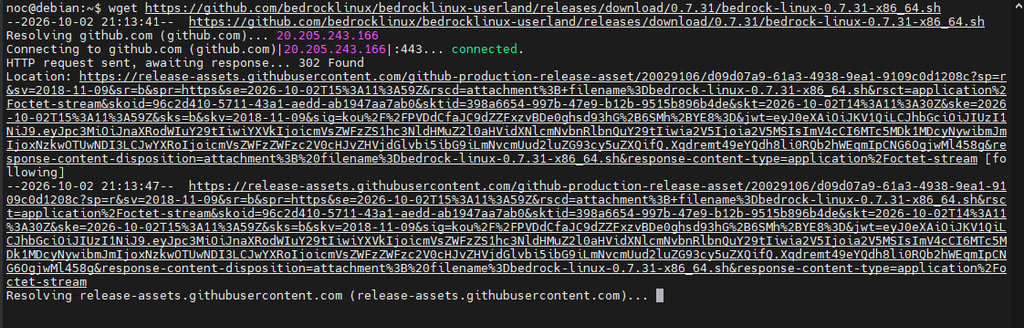
Step 1: Fetch File Installer
For this guide we will use the x86_64 installer of bedrock linux, which stuitable for most modern 64-bit intel and amd systems, using this Release Package to download installer
Step 2: Install Bedrock Linux
Before continuing, make sure you have backed up any important data. Bedrock Linux modifies your existing Linux installation in place, so having a backup is strongly recommended.
– Open a Terminal
Navigate to the directory where you downloaded the Bedrock Linux installer.
For example:
cd ~/path-downloads– Run the Installer
You can make the script executable with or without using chmod.
Run:
sudo sh ./bedrock-linux-0.7.31-x86_64.sh --hijackIf you are already logged in as the root user, you can omit sudo:
sh ./bedrock-linux-0.7.31-x86_64.sh --hijack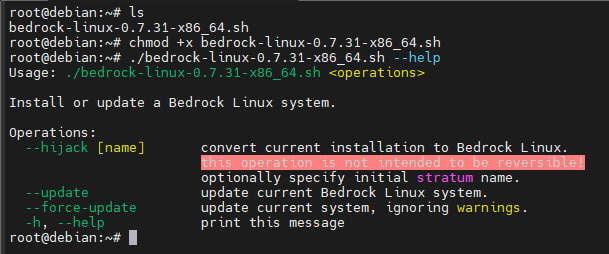
The --hijack option tells Bedrock Linux to convert your existing Linux installation into a Bedrock Linux system.
– Read and Confirm the Installation Prompt
The installer will display important information and warnings before making changes to your system.
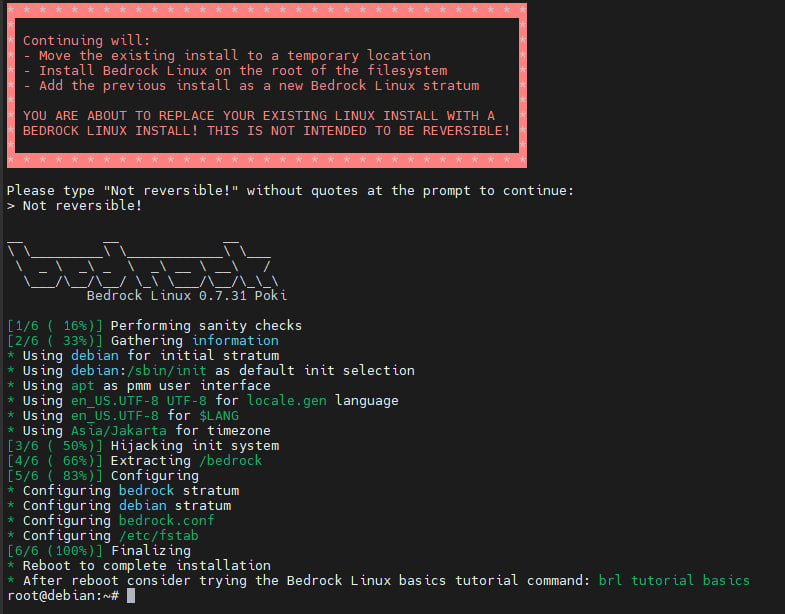
Read the information carefully and follow the confirmation instructions shown by the installer. Once the hijacking process has completed successfully, Bedrock Linux will be installed on top of your existing Linux system. Your original Linux distribution will become one of Bedrock Linux’s strata.
– Reboot the System
After the installation is complete, reboot your computer:
sudo rebootDuring the next boot, you may see Bedrock Linux’s init selection menu. If it appears, the hijack process was successful.
– Run the Bedrock Tutorial
After rebooting into your new Bedrock Linux system, it is recommended to run the built-in beginner tutorial:
brl tutorial basicsThe tutorial introduces the basic concepts of Bedrock Linux, including strata and how components from different Linux distributions can work together.
– Check Available Distributions
To see which Linux distributions Bedrock can currently fetch and add as new strata, run:
brl fetch --list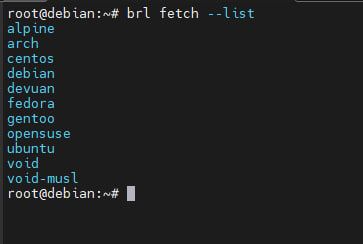
This command displays the actively maintained distributions available for your CPU architecture. For example, once you find a distribution you want to add, you can fetch it with:
sudo brl fetch archor:
sudo brl fetch gentoo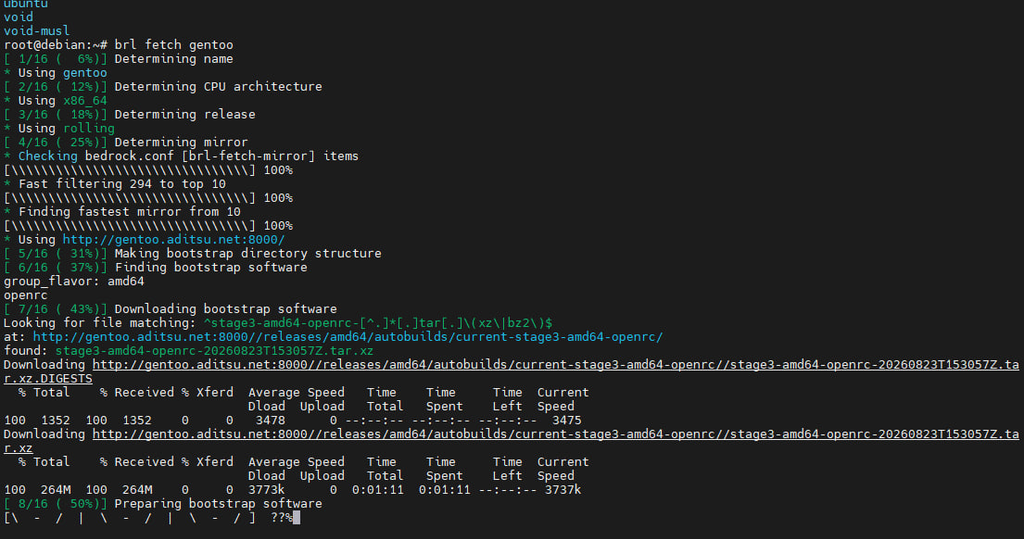
Wait to be finished like this
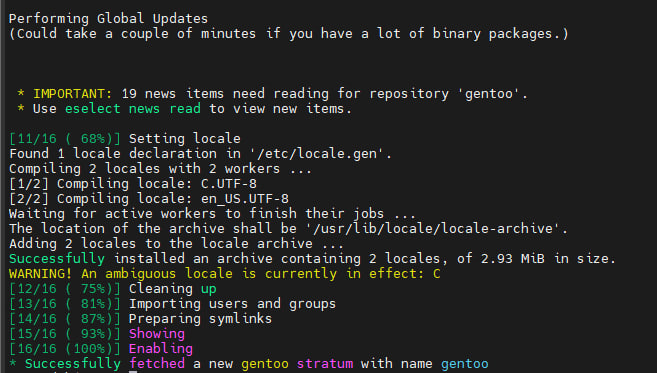
Check Installed Strata
To see the strata that are already installed on your Bedrock Linux system, use:
brl listSo remember:
brl fetch --list— shows distributions that can be addedbrl list— shows strata that are already installed
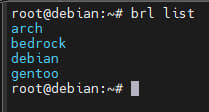
Step 3: Verify the Installed Strata
After adding Arch Linux, Gentoo, and Debian as strata, you can verify that their package managers and applications are working correctly.
Check the Package Managers
First, check the version of each package manager.
For Gentoo:
strat gentoo emerge --versionFor Debian:
strat debian apt --versionFor Arch Linux:
strat arch pacman --version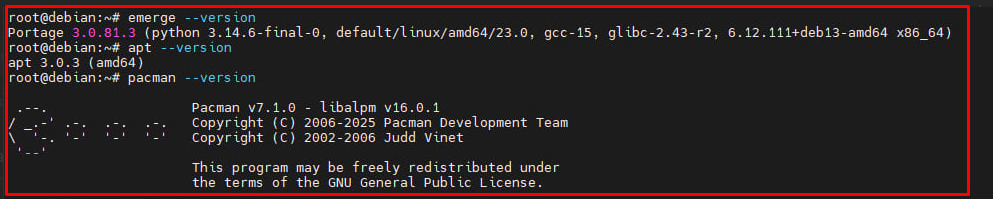
Using strat here makes it explicit which stratum should provide the command. Bedrock is designed to allow commands from different strata to coexist, and strat <stratum> can be used whenever you want to force a command to come from a particular stratum.
Run Applications Directly
For normal applications, you usually do not need to prefix the command with strat.
For example, if Neovim was installed from Arch Linux, you can simply run:
nvimIf Fastfetch was installed from Gentoo:
fastfetchAnd if SSH is being provided by Debian:
sshBedrock Linux exposes commands from enabled strata through its cross-stratum command system, so applications from different distributions can normally be executed directly as if they belonged to one system. If more than one stratum provides the same command, Bedrock chooses one according to its current configuration and context.
Check Where Applications Come From
Bedrock provides the brl which command to identify which stratum is currently providing a command or file.
For example, if Neovim was installed from Arch Linux:
brl which nvimYou should see:
archIf Fastfetch was installed from Gentoo:
brl which fastfetchYou should see:
gentooIf the SSH client is currently being provided by Debian:
brl which sshyou should see:
debian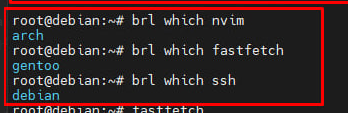
However, commands such as ssh may exist in more than one stratum. In that case, brl which reports whichever stratum is currently providing the command according to Bedrock’s configuration and command resolution.
This makes it easy to demonstrate that applications from several Linux distributions are available within the same Bedrock system.
Explicitly Choose a Stratum
Direct execution should usually be your first option. However, if the same application exists in multiple strata and you want a specific version, you can explicitly choose its stratum with strat.
For example:
strat arch nvimstrat gentoo fastfetchstrat debian sshSo the difference is:
nvimlets Bedrock automatically choose the provider, while:
strat arch nvimexplicitly forces Bedrock to use the Neovim executable from the Arch stratum. Bedrock documents strat specifically for cases where you want to override its automatic command selection.
Verify Multiple Package Managers with Fastfetch
Now run:
fastfetchOn a Bedrock Linux system with Debian, Gentoo, and Arch package databases available, the Packages section may show several package managers at the same time.
For example:
Packages: 321 (dpkg), 299 (emerge), 153 (pacman)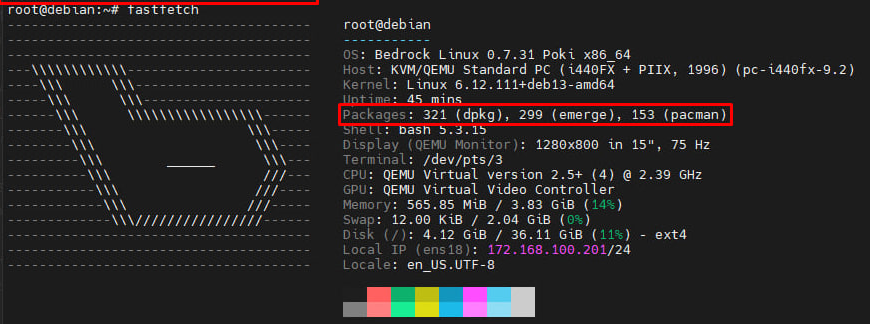
The numbers above are only an example and will be different on every system.
Fastfetch has separate package counters for package managers including dpkg, emerge, and pacman, so it can report package counts from multiple package-management systems when they are detected.
Seeing something similar to:
dpkg
emerge
pacman
in the Packages section is a good visual demonstration of what makes Bedrock Linux interesting: packages and applications from Debian, Gentoo, and Arch Linux can coexist within the same Bedrock system.
Contact Information
Feel free to connect with me:

I’m Ryan Achmad Juliansyah, a network and security engineer from Indonesia with a strong interest in networking, Linux, system administration, and cybersecurity.